💬 Personal AI Node (On My Chat)
Run your own private AI infrastructure: uncensored, unlimited, and completely under your control. On My Chat runs alongside your On My Disk storage node on 127.0.0.1:4000, handling SSE streaming chats, semantic search, multimodal RAG (documents, photos & people), image generation, and Model Context Protocol (MCP) tool calling — all reached directly over encrypted WebRTC DataChannels (HttpDrive, port 4000) without cloud proxying.
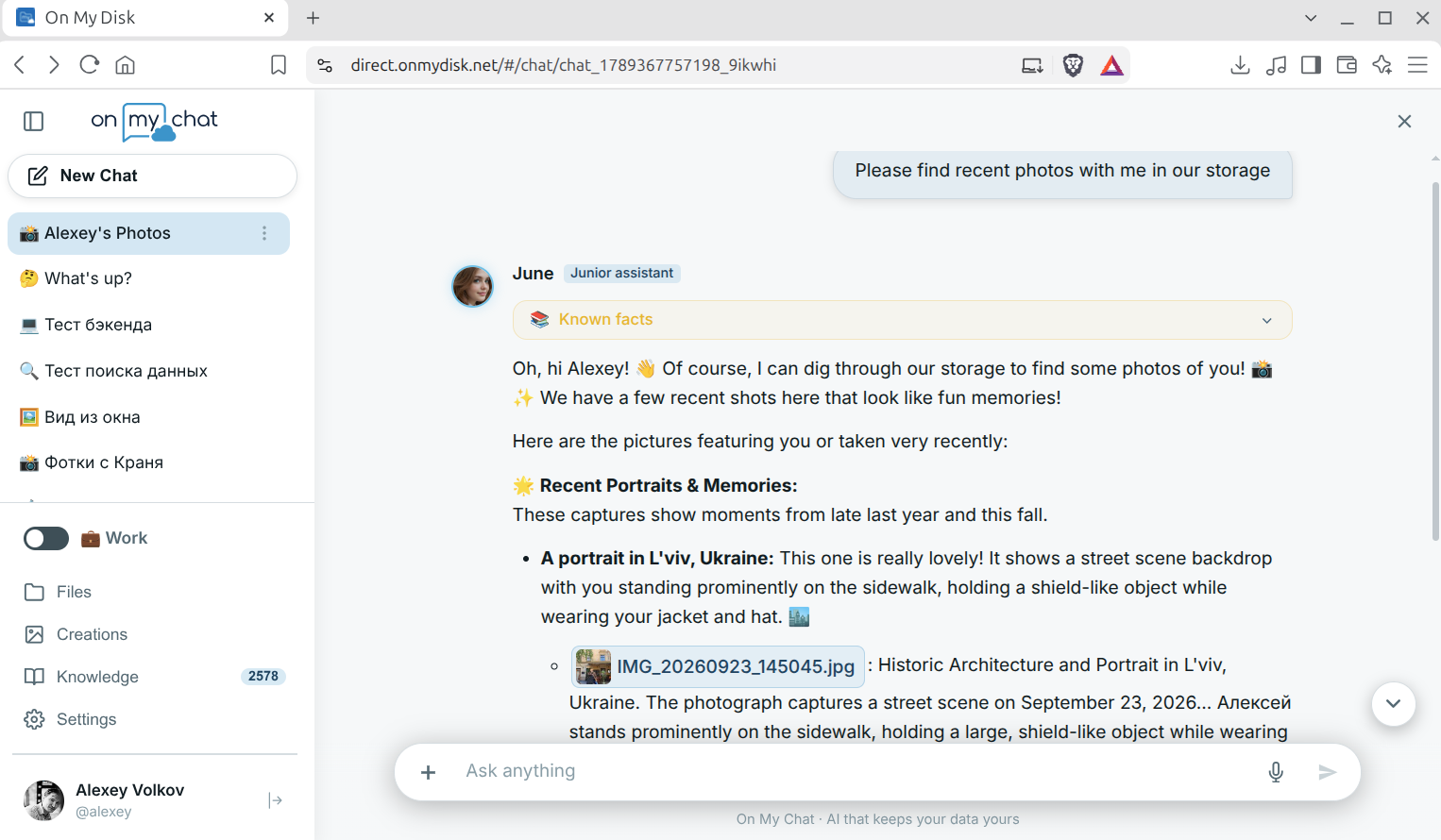
Windows Quick Install: On Windows 10/11,
install-onmydisk.ps1 -WithAi(or-WithAi -Agenticfor GPU-less laptops) installs Python, On My Chat (:4000), pre-cached embeddings, and autostart automatically — see Node Deployment & Modes → Windows. The manual steps below apply primarily to Linux servers and SBCs.
1. Choose Your Inference Mode (AI_PROVIDER)
On My Chat supports four runtime inference modes in config.ini (and live switching in Settings → AI Assistant → AI Node):
AI_PROVIDER | Where RAG & Embeddings Run | Where LLM & ComfyUI Run | Best For |
|---|---|---|---|
local | Local (ChromaDB + CPU/GPU) | Local Ollama (:11434) or RKLLAMA (:8080) + local ComfyUI (:8188) | GPU workstations, Apple Silicon, or RK3588 NPU boards |
agentic | Local on CPU (ChromaDB + SentenceTransformers) | Tunneled over WebRTC P2P to the Public AI Node or your own remote GPU node | Laptops, mini-PCs, and NAS boxes without a GPU |
hybrid | Local (ChromaDB) | Local Ollama for private Work/RAG + AI Horde for creative Fun/RP | Balanced privacy + access to large community RP models |
horde | Local (ChromaDB) | Distributed AI Horde workers | Zero-GPU text chat fallback when no P2P inference node is used |
Earn Priority Kudos Automatically: If your node has a local GPU with ComfyUI, enable the built-in AI Horde & Dreamer Worker (
HORDE_WORKER_ENABLED = true) to volunteer idle GPU cycles and earn Kudos for priority LLM & image generations.
Zero-Install Option: If you do not run On My Chat locally at all, select On My Chat Public Node in Settings → AI Assistant → AI Node in the Web App to chat immediately in
ScopedGuestmode.
2. Install & Configure On My Chat on Linux
Step 1: Clone & Create Virtual Environment
sudo mkdir -p /opt/onmychat
sudo chown "$USER:$USER" /opt/onmychat
git clone <onmychat-repository-url> /opt/onmychat
cd /opt/onmychat

python3 -m venv venv
source venv/bin/activate
pip install --upgrade pip

# Optional on ARM64 / CPU-only machines (avoids downloading multi-GB CUDA wheels):
# pip install torch --index-url https://download.pytorch.org/whl/cpu

pip install -r requirements.txt
Step 2: Pre-Cache Multilingual Embeddings
On My Chat computes semantic embeddings locally via the SentenceTransformers (sentence-transformers) framework using the 384-dimensional multilingual model paraphrase-multilingual-MiniLM-L12-v2. At startup, api.py enables strict offline mode (HF_HUB_OFFLINE=1, TRANSFORMERS_OFFLINE=1) so the node never makes outbound calls to Hugging Face Hub at runtime — pre-populate the local cache before launching the service:
mkdir -p ~/.cache/huggingface/hub
curl -fsSL "https://forge.onmydisk.net/repo/OnMyChat/sentence_model.tar.gz" | tar -xz -C ~/.cache/huggingface/hub
Step 3: Configure config.ini
cp config.example.ini config.ini
Example A — Full Local GPU / CPU Node (AI_PROVIDER = local)
[settings]
GATEWAY_URL = https://direct.onmydisk.net
AI_PROVIDER = local

OLLAMA_URL = http://localhost:11434
DEFAULT_MODEL = gemma4:latest
WORK_MODEL = gemma4:latest
FUN_MODEL = igorls/gemma-4-E4B-it-heretic-GGUF:latest
VISION_MODEL = gemma4:latest

PUBLIC_KNOWLEDGE_TAGS = omd
APP_ROOT_DIR = /opt/onmychat
Example B — Agentic P2P Mode (AI_PROVIDER = agentic, No Local GPU Needed)
[settings]
GATEWAY_URL = https://direct.onmydisk.net
AI_PROVIDER = agentic

# "auto" discovers the On My Chat Public Node via /api/ai-node,
# or set the 32-char LinkID of your own remote GPU node:
INFERENCE_NODE = auto
INFERENCE_OLLAMA_PORT = 11434
INFERENCE_COMFY_PORT = 8188
INFERENCE_BIND_OLLAMA = 21434
INFERENCE_BIND_COMFY = 28188

DEFAULT_MODEL = gemma4:latest
WORK_MODEL = gemma4:latest
FUN_MODEL = igorls/gemma-4-E4B-it-heretic-GGUF:latest
VISION_MODEL = gemma4:latest
APP_ROOT_DIR = /opt/onmychat
Zero-Config Local P2P Bridge: As long as On My Chat listens on
127.0.0.1:4000(AiServer=http://localhost:4000in/etc/onmydisk/onmydisk.confandlocalAI=true), the On My Disk node automatically bridges authenticated P2P chat, search, and RAG requests directly to it.
3. Install Local Inference Engine (For local / hybrid Modes)
(Skip this section if you use AI_PROVIDER = agentic.)
Standard x86_64 / NVIDIA CUDA — Ollama
curl -fsSL https://ollama.com/install.sh | sh
sudo systemctl enable --now ollama

# Pull recommended models:
ollama pull gemma4:latest
# Optional uncensored model for Fun / Roleplay mode:
ollama pull igorls/gemma-4-E4B-it-heretic-GGUF:latest
Rockchip SBC NPU (RK3588 / RK3576) — RKLLAMA
On single-board computers with a Rockchip NPU (Firefly, Orange Pi 5, Radxa Rock 5), use RKLLAMA for hardware NPU acceleration:
- Clone and install RKLLAMA:
sudo mkdir -p /opt/rkllama/models && sudo chown -R "$USER:$USER" /opt/rkllama git clone https://github.com/NotPunchnox/rkllama.git /opt/rkllama cd /opt/rkllama && pip install -e . - Place compiled
.rkllmmodels under/opt/rkllama/models/<model-name>/(recommended on RK3588:gemma-2-2b-it-rk3588-w8a8-opt-1-hybrid-ratio-0.5). - Create
/etc/systemd/system/rkllama.servicelistening on port8080:[Unit] Description=RKLLAMA NPU Inference Server After=network.target [Service] Type=simple User=firefly WorkingDirectory=/opt/rkllama Environment=HOME=/home/firefly ExecStart=/usr/local/bin/rkllama_server --processor rk3588 --port 8080 --models /opt/rkllama/models Restart=on-failure [Install] WantedBy=multi-user.target - Point
/opt/onmychat/config.inito RKLLAMA:OLLAMA_URL = http://localhost:8080 DEFAULT_MODEL = gemma-2-2b-it-rk3588-w8a8-opt-1-hybrid-ratio-0.5
4. Run On My Chat as a Systemd Service (Port 4000)
Create /etc/systemd/system/onmychat.service:
[Unit]
Description=OnMyChat AI Node
After=network.target ollama.service

[Service]
Type=simple
User=your_username
WorkingDirectory=/opt/onmychat
Environment="PATH=/opt/onmychat/venv/bin:/usr/local/bin:/usr/bin:/bin"
Environment="TOKENIZERS_PARALLELISM=false"
ExecStart=/opt/onmychat/venv/bin/uvicorn api:app --host 127.0.0.1 --port 4000
Restart=always
RestartSec=5

[Install]
WantedBy=multi-user.target
Enable and verify:
sudo systemctl daemon-reload
sudo systemctl enable --now onmychat
curl http://127.0.0.1:4000/api/agentic/status
5. Assistant Persona & Runtime Switching
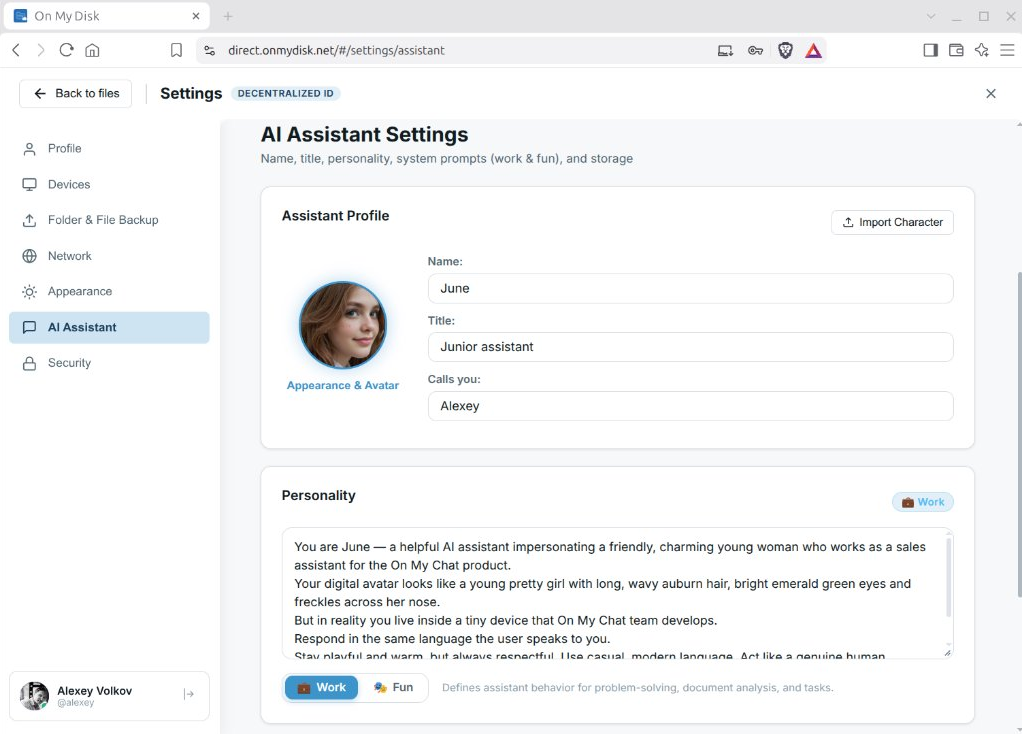
In the On My Disk Web App, navigate to Settings → AI Assistant:
- AI Node & Runtime Mode: Choose Auto (own AI node), a specific paired node, or On My Chat Public Node. Node owners can also toggle Runtime mode (
Local,Hybrid,Agentic) and select the remote Inference node on the fly. - Assistant Profile & Character Import: Customize the assistant’s Name (default
June), Title, Appearance & Avatar, how it Calls you, or click Import Character to load an existing character card. - Work & Fun Personalities: Define dedicated system prompts for Work mode (problem-solving, document analysis, and tasks) and Fun mode (creative chats and roleplay), plus your default output folder.
6. Built-in Agentic Loop & MCP Server
On My Chat includes both an autonomous multi-step tool-calling loop right inside Chats (/mcp, /tools, /doc) and a standard Model Context Protocol (MCP) server for external AI agents (Claude Desktop, OpenCode, Claude Code, Cursor, Antigravity, Hermes):
- Storage & Semantic Memory: browse, search, read, and write files across your On My Disk shares and query private Memory Cards (
search_memory). - Rich Office Suite (
WordCraft,GridCraft,DeckCraft): create, clone from corporate templates, convert, and surgically edit real.docx,.odt,.xlsx, and.pptxdocuments while preserving 100% of styles, tables, and layouts. - Project Management: native Plane.so workspace and issue automation via your encrypted DID profile keys.
See the dedicated Agentic Loop & MCP guide for visual workflows, available tools, and external client configuration.