🎨 Image Generation (Creations — Optional)
With On My Chat, you can turn your node into a private generative art studio right inside the Creations workspace (Chats → Creations).
Optional Component: Image generation is completely optional — On My Chat runs chat, semantic search, Memory Cards, and MCP document tools without it. Whenever ComfyUI is configured on your GPU node (or reached remotely via Agentic P2P mode / the On My Chat Public Node), the Creations workspace activates automatically.
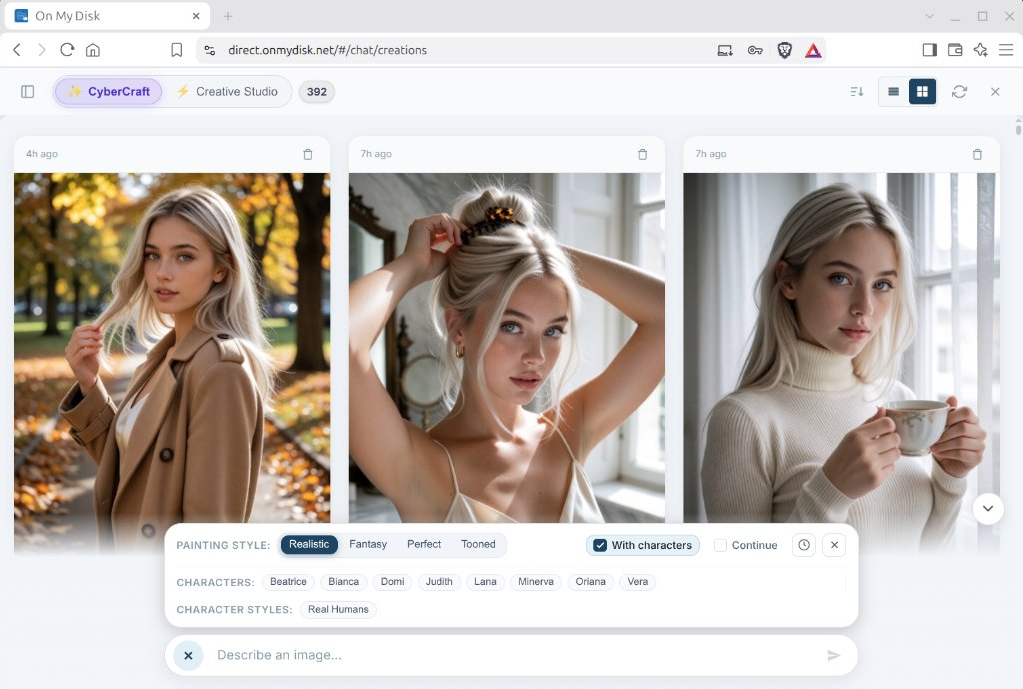
1. Two Engines Scaled to Your GPU (CyberCraft & Creative Studio)
When ComfyUI is connected, Creations provides two dedicated generation modes at the top of the studio so you can match model weight to available VRAM:
- ✨
CyberCraft(SDXL Mode — Modest VRAM GPUs):- Built for fast, small-footprint generation on everyday GPUs with low-to-medium VRAM (e.g. 8–12 GB).
- Includes one-click Painting Styles (
Realistic,Fantasy,Perfect,Tooned), consistent Characters (With characters+ character/style LoRA selectors), andContinuemode for iterative scene refinement.
- ⚡
Creative Studio(Krea 2Mode — High-VRAM GPUs):- Built for high-memory GPUs (16–24+ GB VRAM workstations or shared P2P GPU nodes).
- Runs flagship high-parameter diffusion pipelines powered by CyberRealistic Krea 2 (alongside curated studio checkpoints), delivering cinematic lighting, lifelike skin/fabric detail, and high-resolution renders saved straight to your private storage.
2. Two Ways to Connect ComfyUI
Option A: Agentic P2P Mode (Zero Local GPU)
If your node runs in Agentic mode (AI_PROVIDER = agentic, e.g., installed on a Windows laptop with -WithAi -Agentic), no local ComfyUI installation is needed:
agentic_tunnel.pyexposes a local listener (127.0.0.1:28188) that tunnels ComfyUI HTTP API calls (/prompt,/view,/object_info) and real-time WebSocket progress (/ws) over an encrypted WebRTC DataChannel to your remote GPU node or the Public AI Node (port 8188).
Option B: Local ComfyUI on Your Own GPU Host
To run CyberCraft and/or Creative Studio (Krea 2) locally on your own NVIDIA GPU machine:
- Install ComfyUI:
git clone https://github.com/comfyanonymous/ComfyUI /opt/ComfyUI cd /opt/ComfyUI python3 -m venv venv && source venv/bin/activate pip install -r requirements.txt - Place Models & LoRAs: Drop your SDXL (
CyberCraft) and/or Krea 2 (Creative Studio) checkpoints and character.safetensorsLoRA weights into/opt/ComfyUI/models/checkpoints/and/opt/ComfyUI/models/loras/. - Start ComfyUI on port
8188:python3 main.py --listen 127.0.0.1 --port 8188 - Configure
/opt/onmychat/config.ini& Restart:COMFY_API_URL = http://localhost:8188 WORKFLOW_PATH = flow.json COMFY_OUTPUT_DIR = /opt/ComfyUI/output COMFY_INPUT_DIR = /opt/ComfyUI/inputsudo systemctl restart onmychat
3. Generating Images in Creations & Chat
- Creations Workspace: Open Creations from the left sidebar in On My Chat, switch between ✨ CyberCraft and ⚡ Creative Studio, pick your style or character presets, and type your prompt in Describe an image….
- In-Chat
/generateCommand: You can also trigger image generation directly inside any conversation:/generate Autumn park portrait in golden hour light, camel trench coat, 85mm lens
All generated artworks are saved directly into your configured On My Disk storage folder (Settings → AI Assistant) and can be browsed, downloaded, or shared via P2P links from any device.